

Install the tracking script
1
Open the tracking settings
Go to Settings and find Analytics tracking. If you do not have a site token yet, generate one.
2
Copy the snippet
Choose the tab that fits your website:
- Standard HTML: paste the snippet into the HTML of every page of your website.
- Google Tag Manager: use the Tag Manager version of the snippet.
3
Publish and check
Publish your website or your Tag Manager container, visit a page, and open Analytics in Trackbase to see the first visits come in.
What the page shows
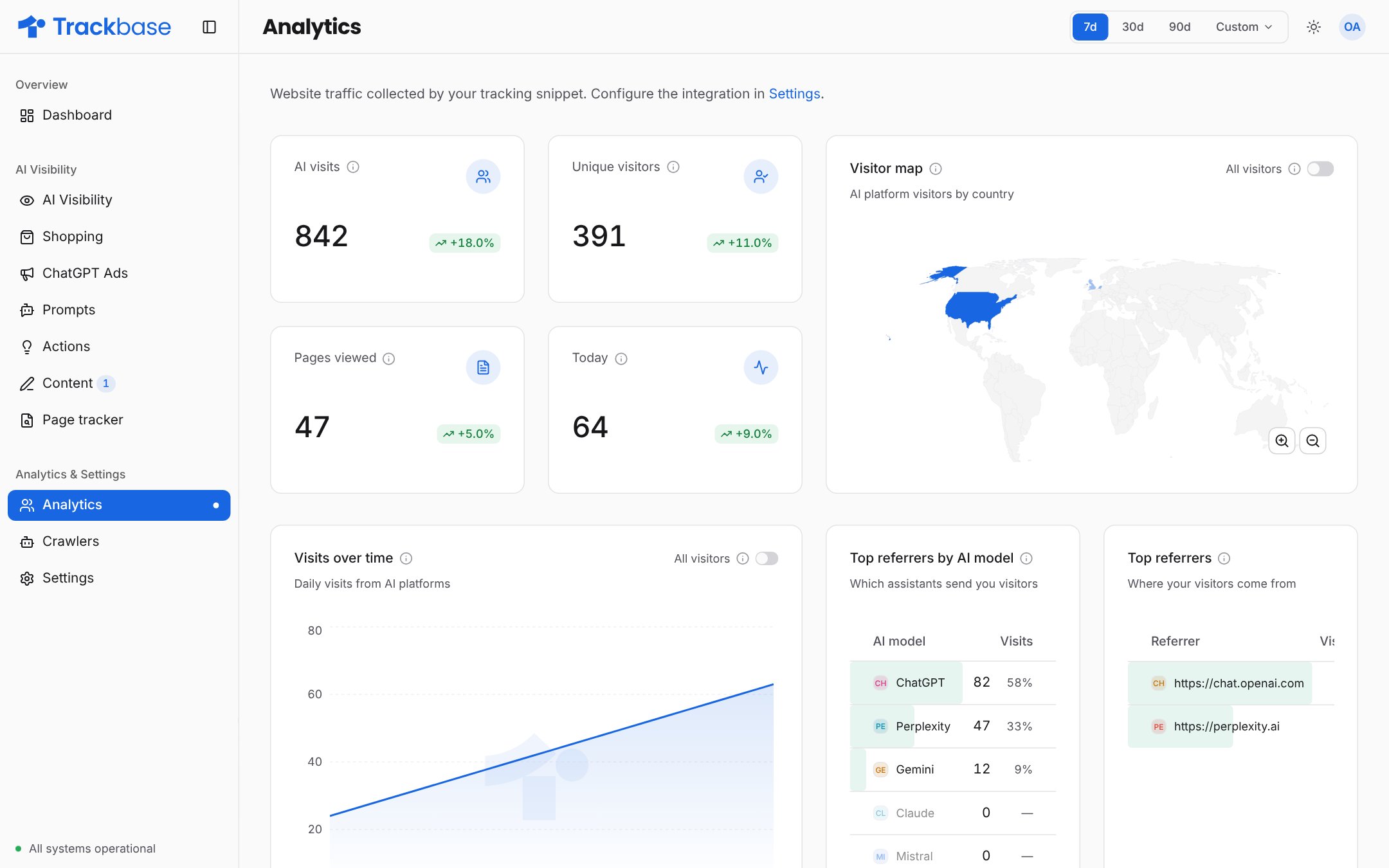
- Key numbers for the selected period, with the change within that period.
- Timeline of AI visits per day. You can overlay all visitors to see AI traffic as a share of the total.
- World map of visits per country, for all visitors or AI visits only.
- Top pages, with a separate column for AI visits.
- Devices: browser, operating system and device type.
- Top referrers by AI model: which assistants send you visitors.
- Top referrers: the websites that send you visitors.
Good to know
- Crawlers are not counted as visitors. A request from a known crawler is left out of visitor analytics. Crawler activity has its own page, see crawler analytics.
- The timeline shows completed days. The current day is still collecting visits, so it is left out of the line. The key number for today does update live.
- Expect modest numbers at first. For most websites AI is still a small share of traffic. The value is in the trend.