

Three ways to connect
You set up each method under Settings, in the crawler analytics card. Until a connection exists, the Crawlers page shows a setup prompt. After connecting, it waits for the first data.
Which crawlers are recognized
Trackbase recognizes a crawler by its user agent and sorts it into a category:
Unknown bots are grouped under a general label.
What the page shows
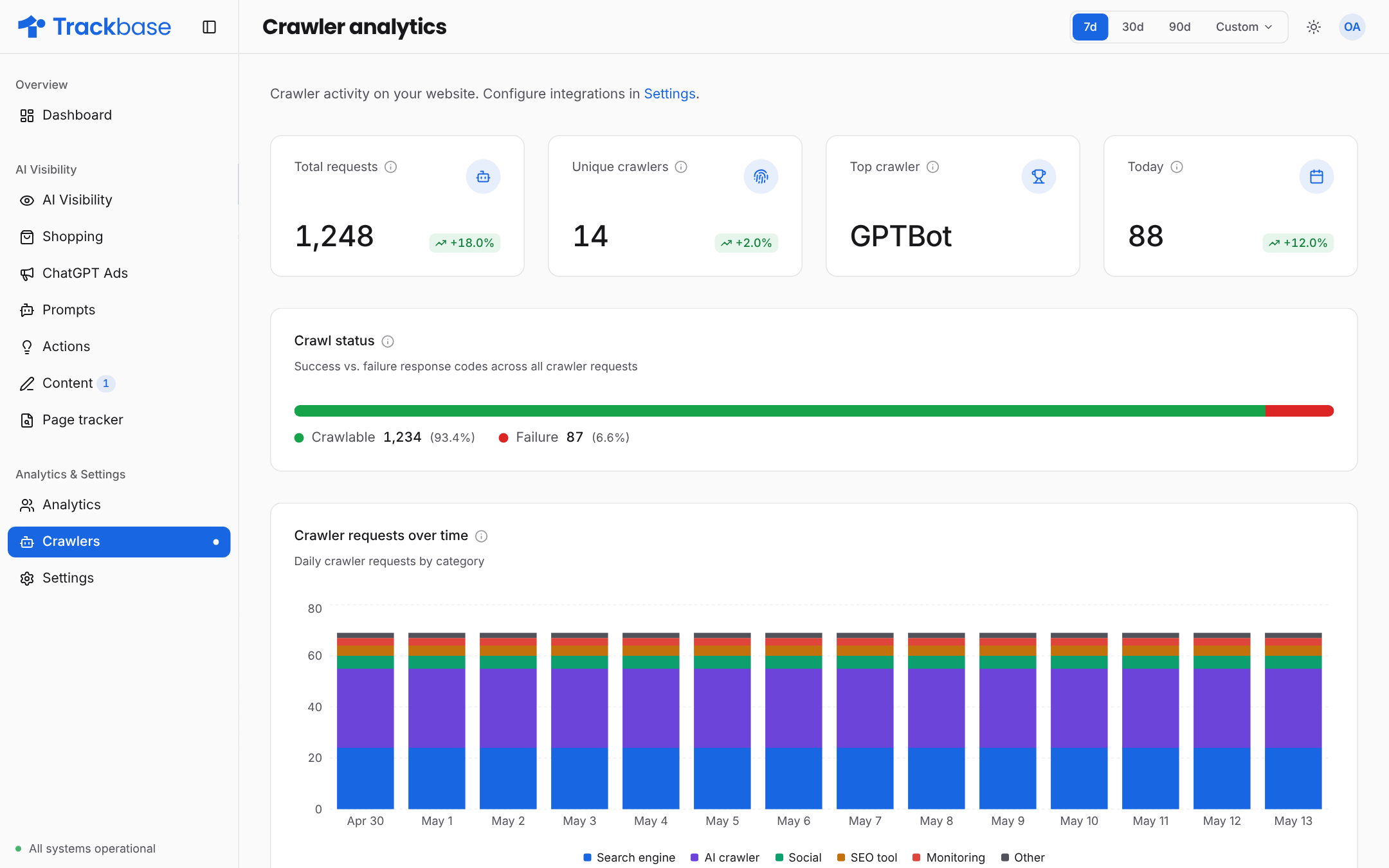
- Key numbers for the selected period: total requests, unique crawlers, the top crawler and today.
- Crawl status: the share of crawler requests that succeeded or failed.
- Timeline of crawler requests, with an optional 7-day moving average.
- Breakdown per crawler and per category.
- Top pages: the pages crawlers request most, with a status that shows whether the page is crawlable or how often requests fail.
- Crawler request log: individual requests with date, crawler, page, status code and referrer. Switch it to failures only to debug a page.
What to look for
- Important pages with no AI crawler requests. Check your robots.txt, your firewall and your CDN settings.
- Pages with a failure status. Open the request log, filter on failures and look at the status codes.
- Crawled but never cited. The crawlers can read the page, so the work is in the content. Follow the page in the Page tracker.